applet · v1.4.1 · GPL-2.0+
Panel Profiles
Save a panel layout by name. Restore it exactly.
applet · v1.4.1 · GPL-2.0+
Save a panel layout by name. Restore it exactly.
Why this exists
Cinnamon usually remembers your panels. It forgets in one specific place: a multi-head VM where the second virtual display appears after Cinnamon has already started. You reboot, Cinnamon comes up with one monitor, and by the time the second head arrives the second panel and its applets are gone. You rebuild it by hand. Every single reboot.
Set the panels up once, save the layout, restore it with one click.
Panel Profiles fixes that, and it doubles as a general layout manager. Keep a Minimal profile, a Development profile, a Presentation profile, and flip between them on purpose.
The short version of using it: save, break it, restore.
Nothing restores at boot. Cinnamon starts with whatever it last saved, and profiles apply only when you click them. Click one that expects more displays than are connected and the applet waits for them, up to your timeout, before restoring.
Every load is transactional. A rollback snapshot is written first, the profile is applied, the result is verified against what it should be, and a failed load undoes itself back to the snapshot. The menu also tells you when the live layout has drifted from the active profile, with an Update action to re-save it.
Profiles are plain JSON under ~/.config/cinnamon-panel-profiles/, written mode 0600 so only your user can read them. Treat them as private: a profile carries the raw configuration of every applet it references, and applet configs can hold account names or tokens.
applet v1.4.1 GPL-2.0+
Features
How a restore runs
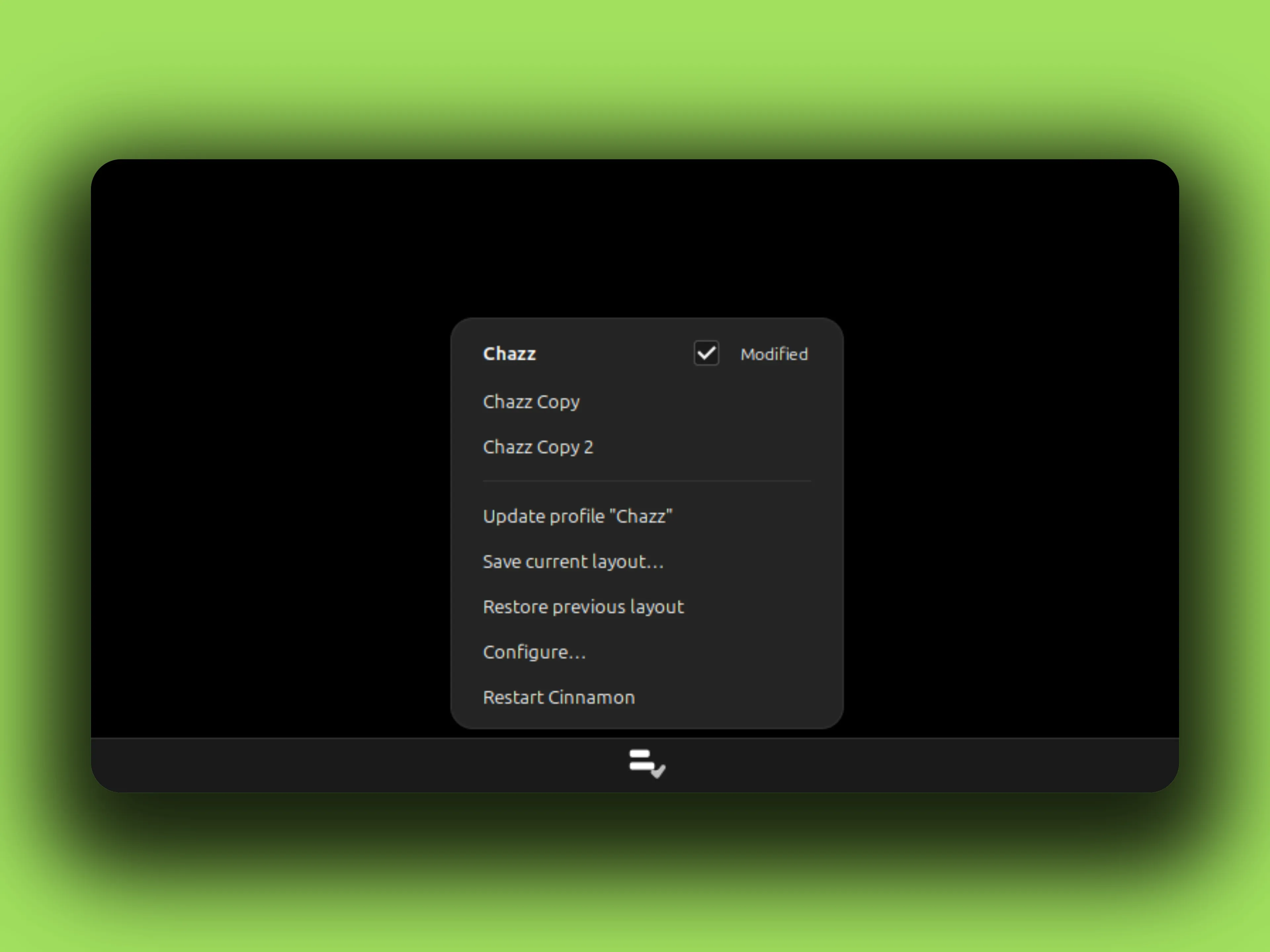
The menu opens straight into your profiles. The active one sits bold with a check; when the live layout drifts from it, the row gains a Modified tag and the menu offers an Update.
If verify fails: automatic undo, back to the snapshot.
Settings
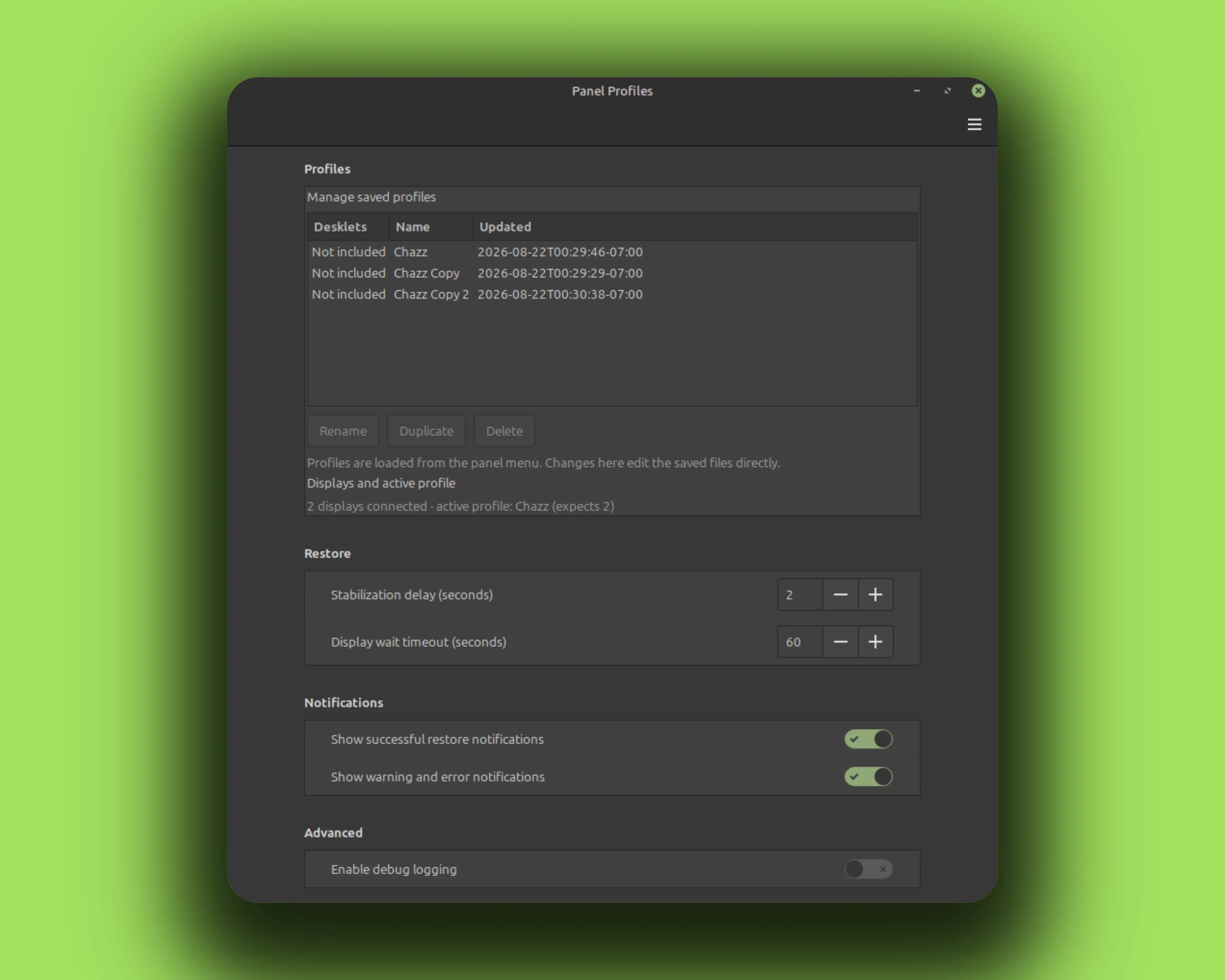
Fragment of the real settings window. Labels and defaults come from settings-schema.json.
Gallery
Install
No root needed. Everything lands in your home directory. The rm -rf before each copy is the upgrade path; your settings live elsewhere and survive.
curl -fLO https://github.com/CurbSoftware/cinnamon-panel-profiles-applet/releases/latest/download/cinnamon-panel-profiles-applet.zip
unzip -o cinnamon-panel-profiles-applet.zip
mkdir -p ~/.local/share/cinnamon/applets
rm -rf ~/.local/share/cinnamon/applets/cinnamon-panel-profiles-applet@curbsoftware
cp -r cinnamon-panel-profiles-applet@curbsoftware/files/cinnamon-panel-profiles-applet@curbsoftware ~/.local/share/cinnamon/applets/cinnamon-panel-profiles-applet@curbsoftware git clone https://github.com/CurbSoftware/cinnamon-panel-profiles-applet.git || git -C cinnamon-panel-profiles-applet pull
cd cinnamon-panel-profiles-applet
mkdir -p ~/.local/share/cinnamon/applets
rm -rf ~/.local/share/cinnamon/applets/cinnamon-panel-profiles-applet@curbsoftware
cp -r files/cinnamon-panel-profiles-applet@curbsoftware ~/.local/share/cinnamon/applets/cinnamon-panel-profiles-applet@curbsoftware Restart Cinnamon (Alt-F2, type r, Enter), then add the applet from Cinnamon Settings.